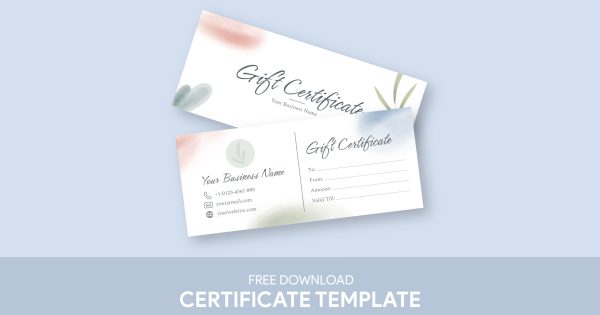
Creating a striking business card can be a fantastic way to make a lasting impression, especially when you can do it for free using the Elegant Business Card Free Google Docs Template. This template stands out because it combines elegance with ease of use, making it accessible even if you’re not a design expert. In this post, I’ll walk you through the features, customization options, and how to get the most out of this resource.
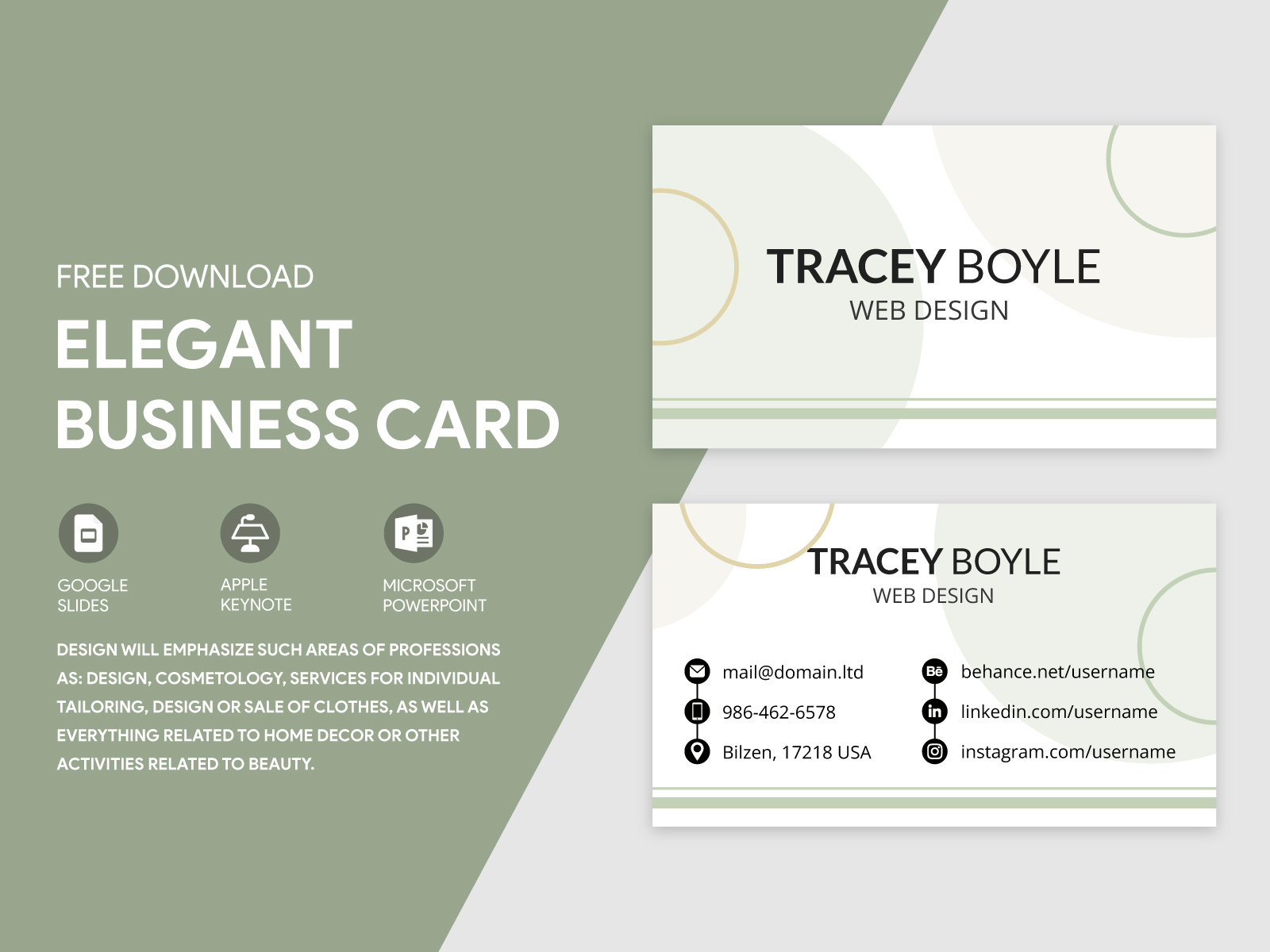
Key Features of the Elegant Business Card Google Docs Template
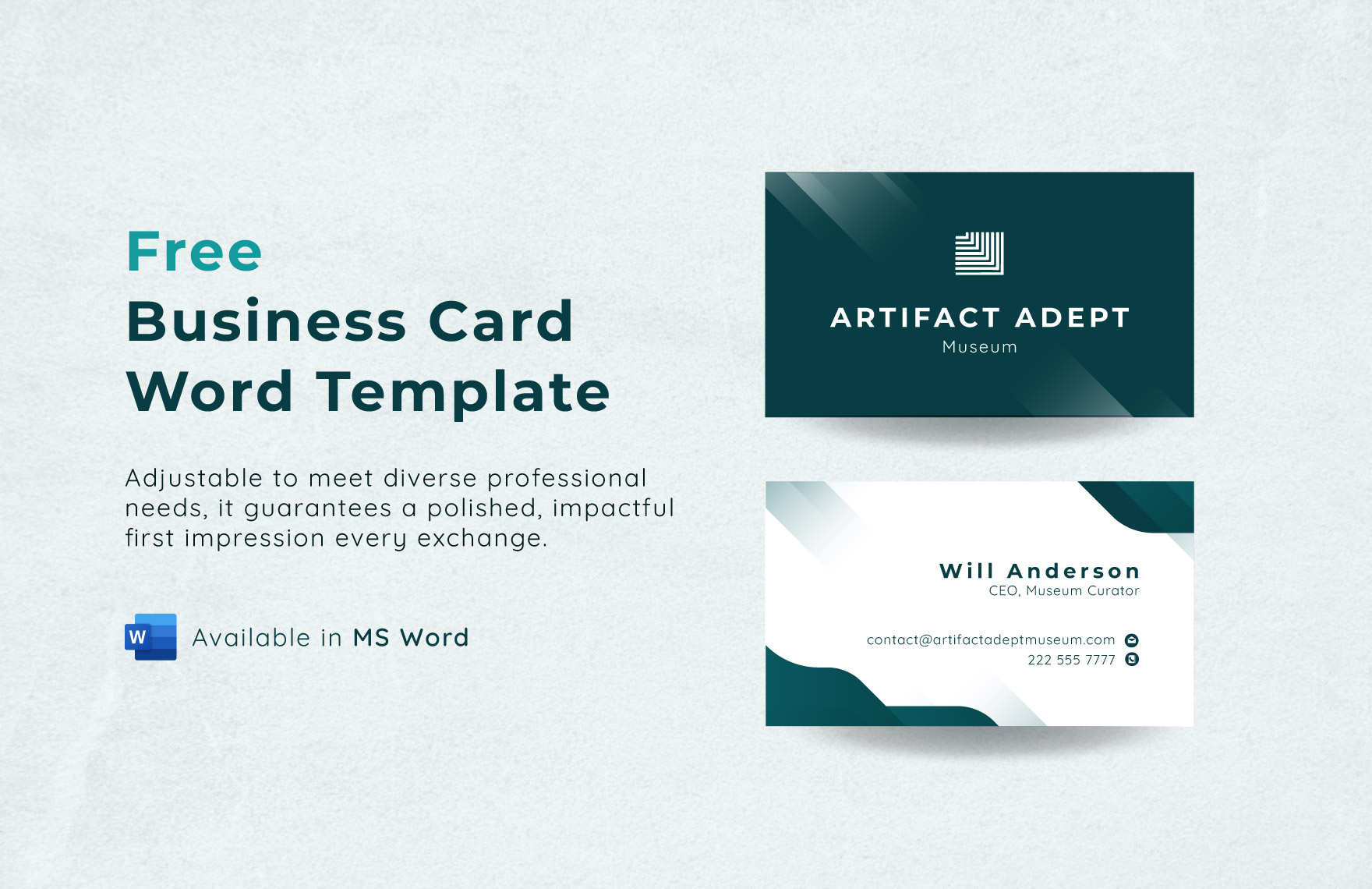
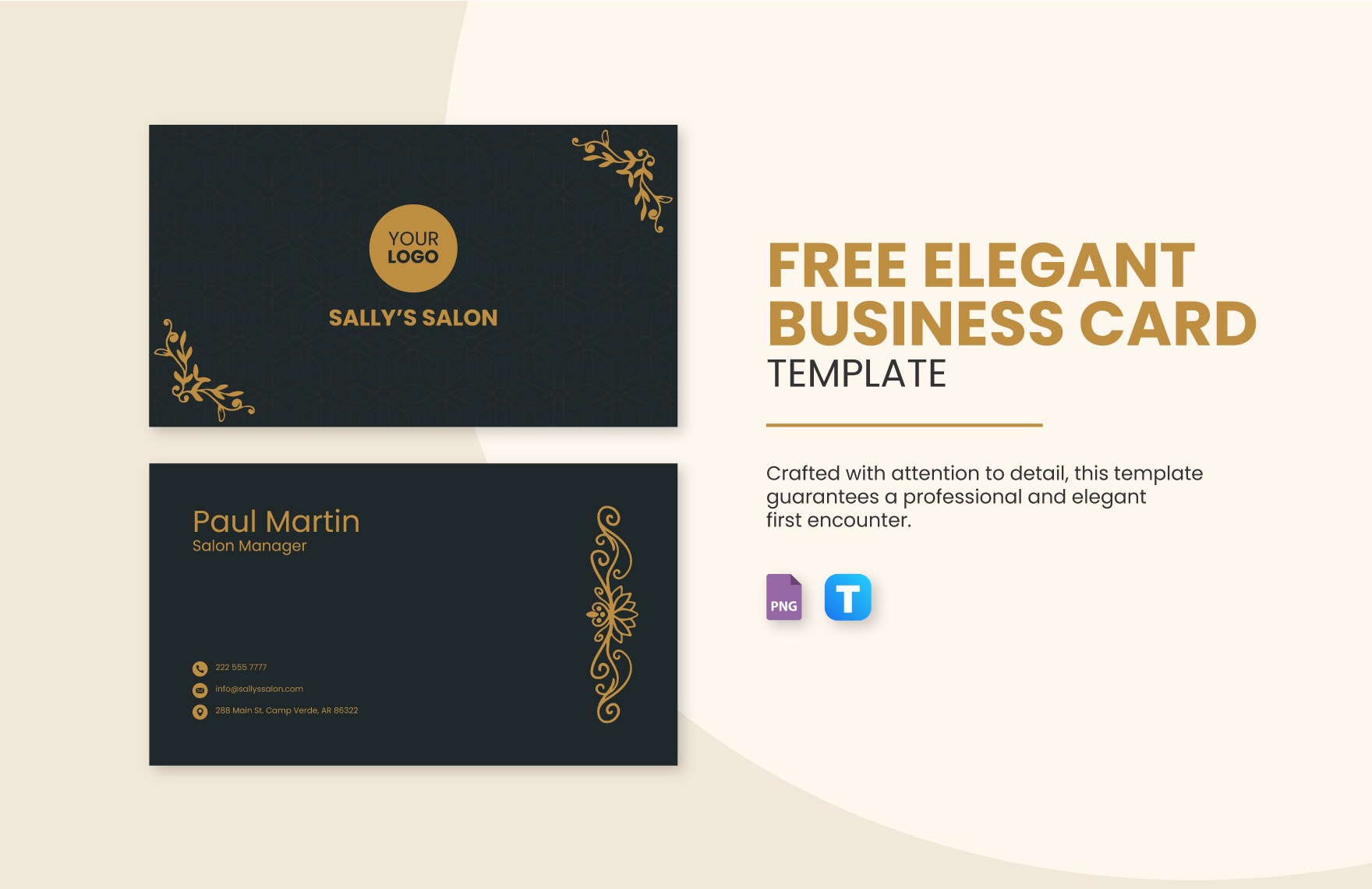
When you open the Elegant Business Card Free Google Docs Template, the first thing you’ll notice is its clean and professional layout. The template is typically designed for a standard size of 3.5 x 2 inches, which fits perfectly in most business card holders. It’s a smart choice if you want something that’s both stylish and functional.
The design elements include a sleek font, ample white space, and a balanced color scheme that you can easily customize to match your brand. There are sections for your name, title, contact information, and even a logo placeholder if you have one. This means you can create a card that reflects your personal or business identity without starting from scratch.
Customization Options
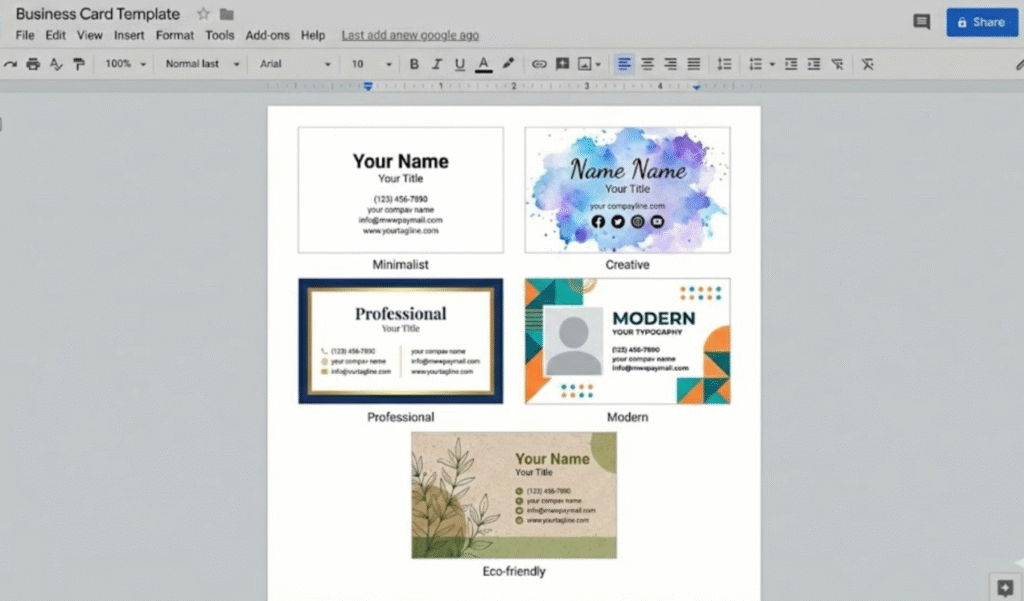
One of the greatest advantages of using a Google Docs template is the ease of customization. You can easily change the text to include your name, job title, and contact details. You can also modify the colors and fonts to align with your brand identity.
To personalize your card, simply click on the text boxes to edit them. You can also change the background color or add images, such as your logo, by using the Google Docs image tools. If you’re not sure where to start, think about the following:
- Font Selection: Choose a font that reflects your style and is easy to read. Common choices include Arial, Times New Roman, or a more modern sans-serif font.
- Color Scheme: Stick to a color palette that represents your brand. For instance, if you’re in a creative field, you might opt for brighter colors, whereas a more corporate field might call for muted tones.
- Logo Placement: If you have a logo, place it strategically on the card to enhance brand recognition. Typically, logos go on the left side or centered at the top.
Printing and Material Choices
Once you’ve customized your card, it’s time to consider printing. The Elegant Business Card Free Google Docs Template is designed to be printed on standard cardstock, which provides a professional feel. Here are some practical tips for printing:
- Paper Size: Use 8.5 x 11-inch cardstock, which is the most common size for printing business cards.
- Printer Settings: If you’re printing at home, ensure your printer settings are adjusted for high-quality output. Select the “Best” quality setting and make sure to print on the heavier paper option if available.
- Cutting the Cards: After printing, you’ll need to cut the cards out. A paper cutter can give you clean, straight edges, but scissors will work if you’re careful.
Delivery and Usage
How you deliver your business cards can be as important as the design itself. Whether you hand them out at networking events, include them in client packages, or leave them at local businesses, the way you present your card can influence how it’s received. Here are a couple of practical ideas:
- Networking Events: Always have a few cards on hand when attending networking events. It’s a great way to connect with potential clients or partners.
- Mailing: If you are sending out promotional materials, including your business card can help recipients remember you.
You might also consider laminating your cards if you want them to hold up better over time, especially if they’ll be handled frequently.
Elegant Business Card Free Google Docs Template Gallery