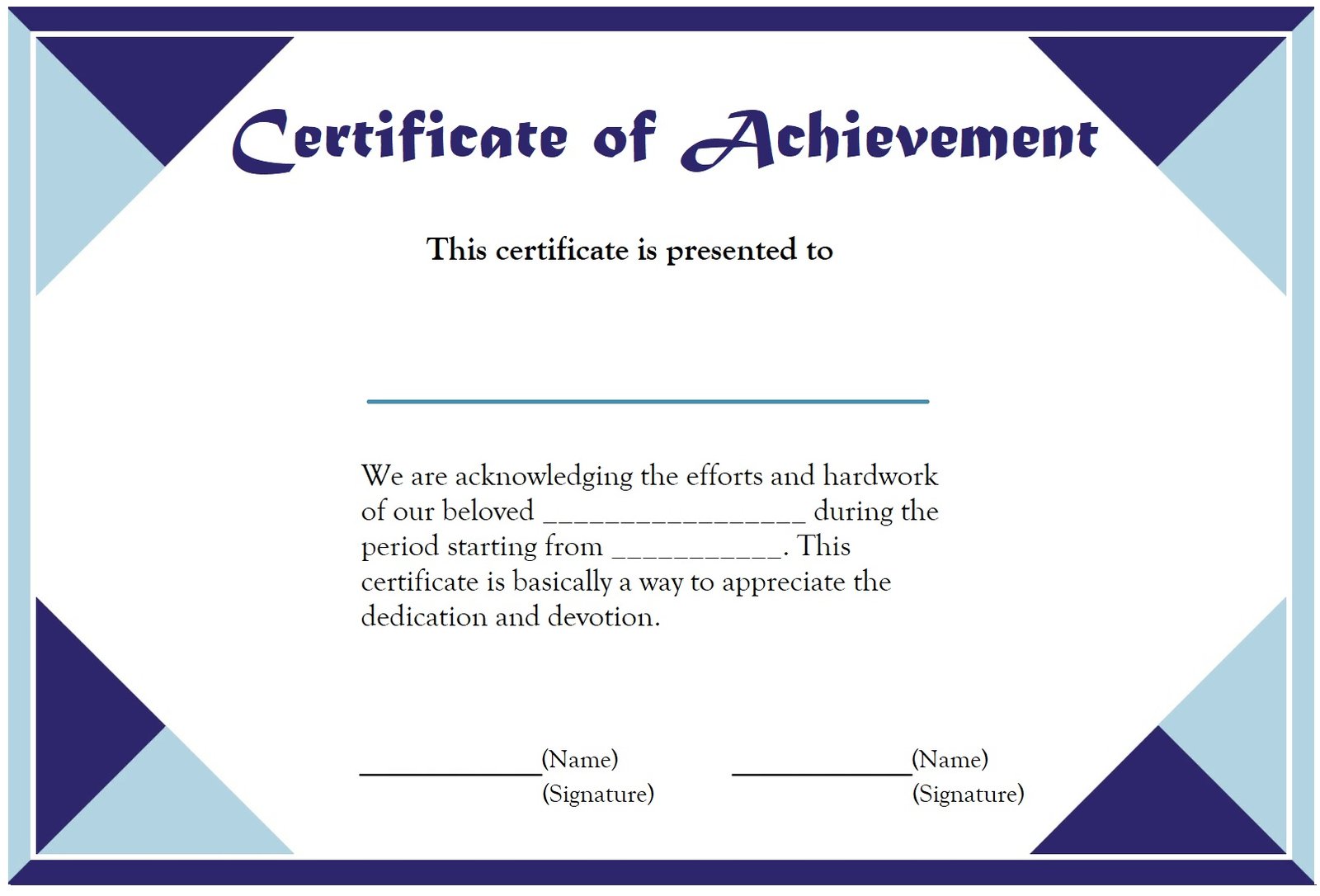
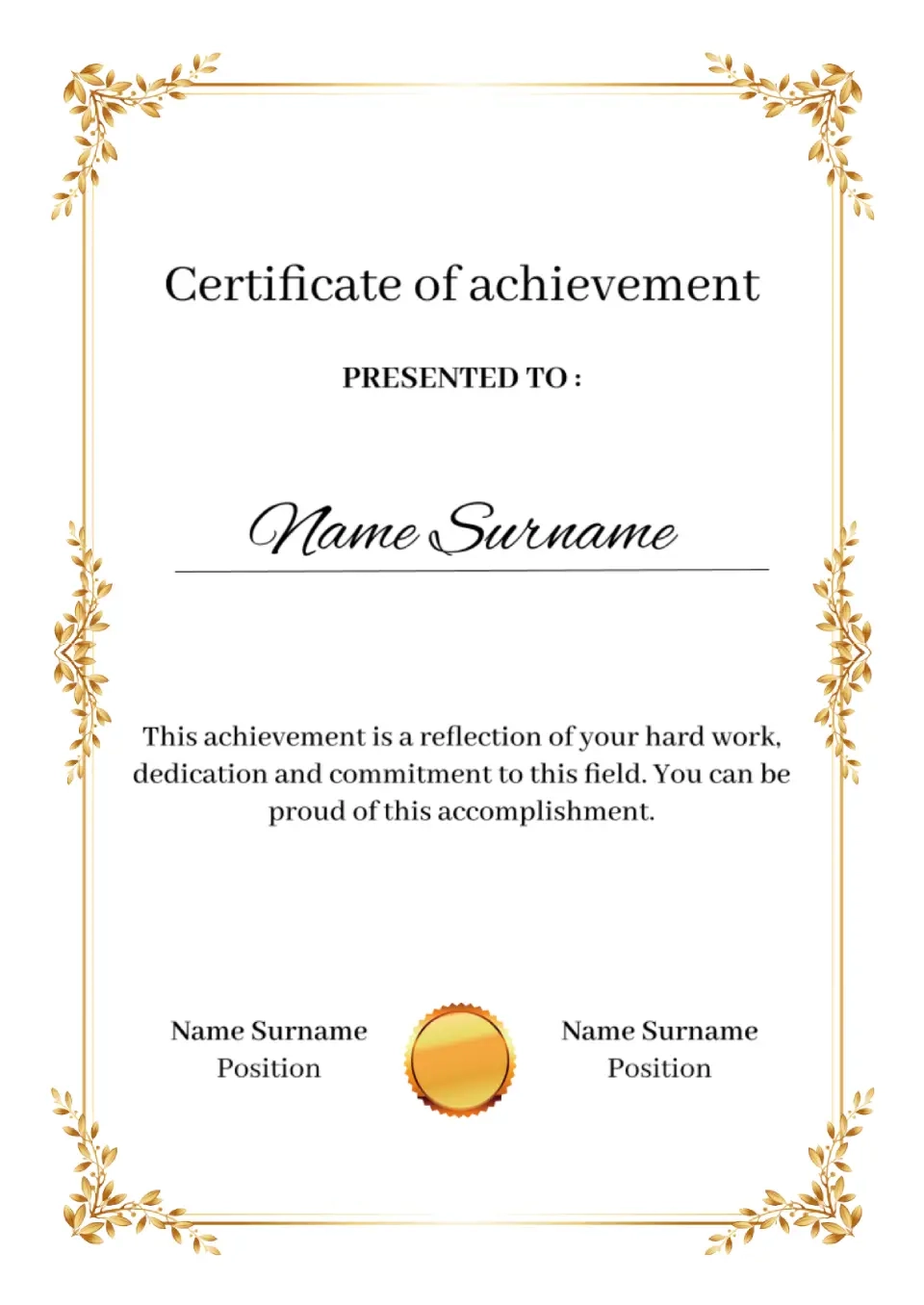
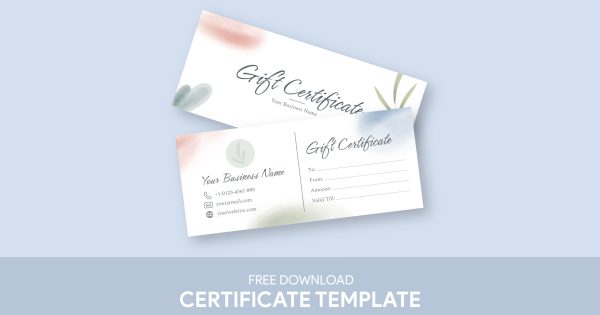
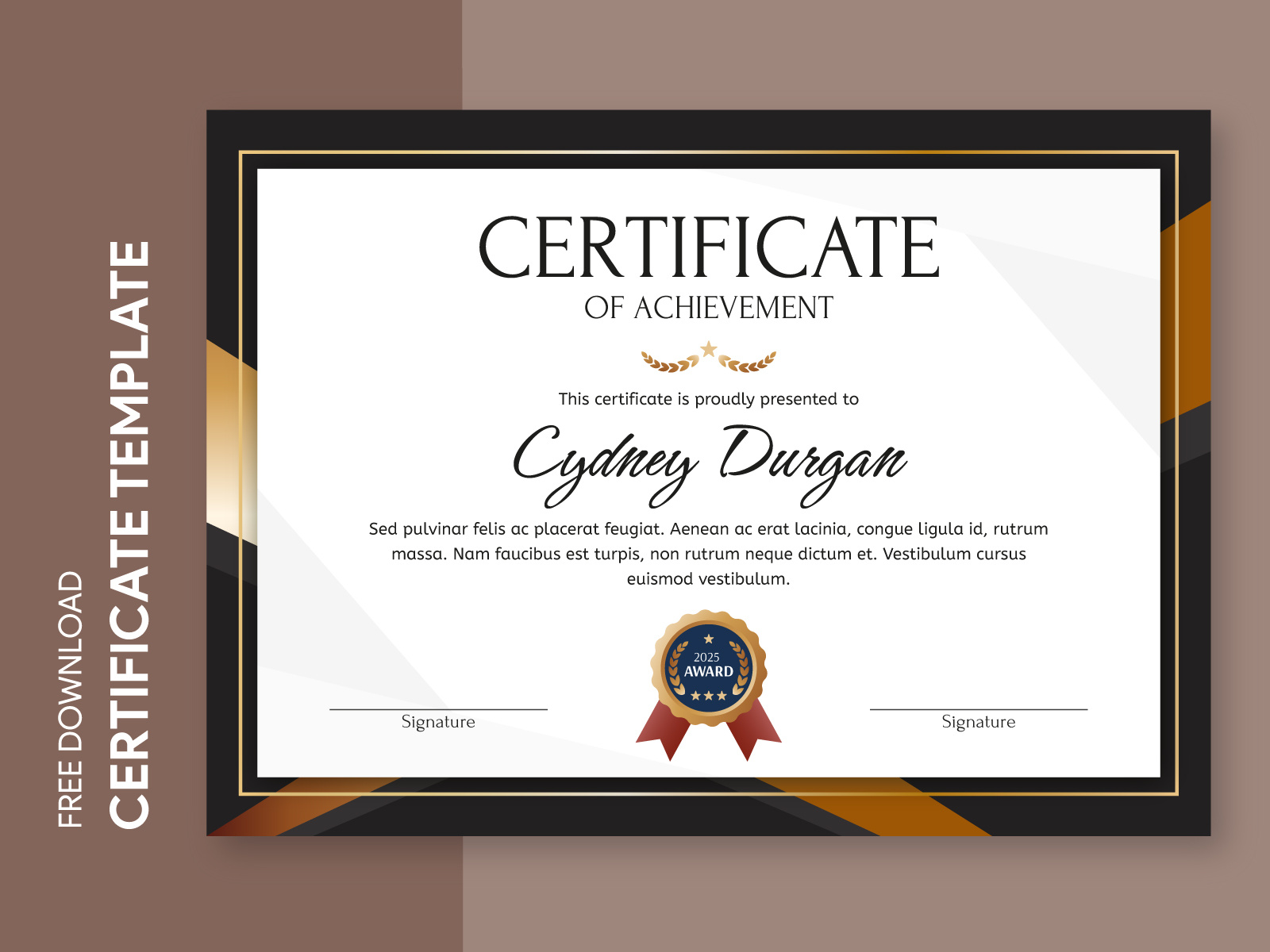
When it comes to celebrating accomplishments, nothing feels quite as special as a Certificate of Achievement. Whether it’s for a child’s school project, a sports team, or a workplace recognition, having a beautifully designed certificate can make the moment even more memorable. With a Certificate of Achievement Free Google Docs Template, you can easily craft a professional-looking award that fits any occasion.
Why Choose a Google Docs Template for Your Certificate?
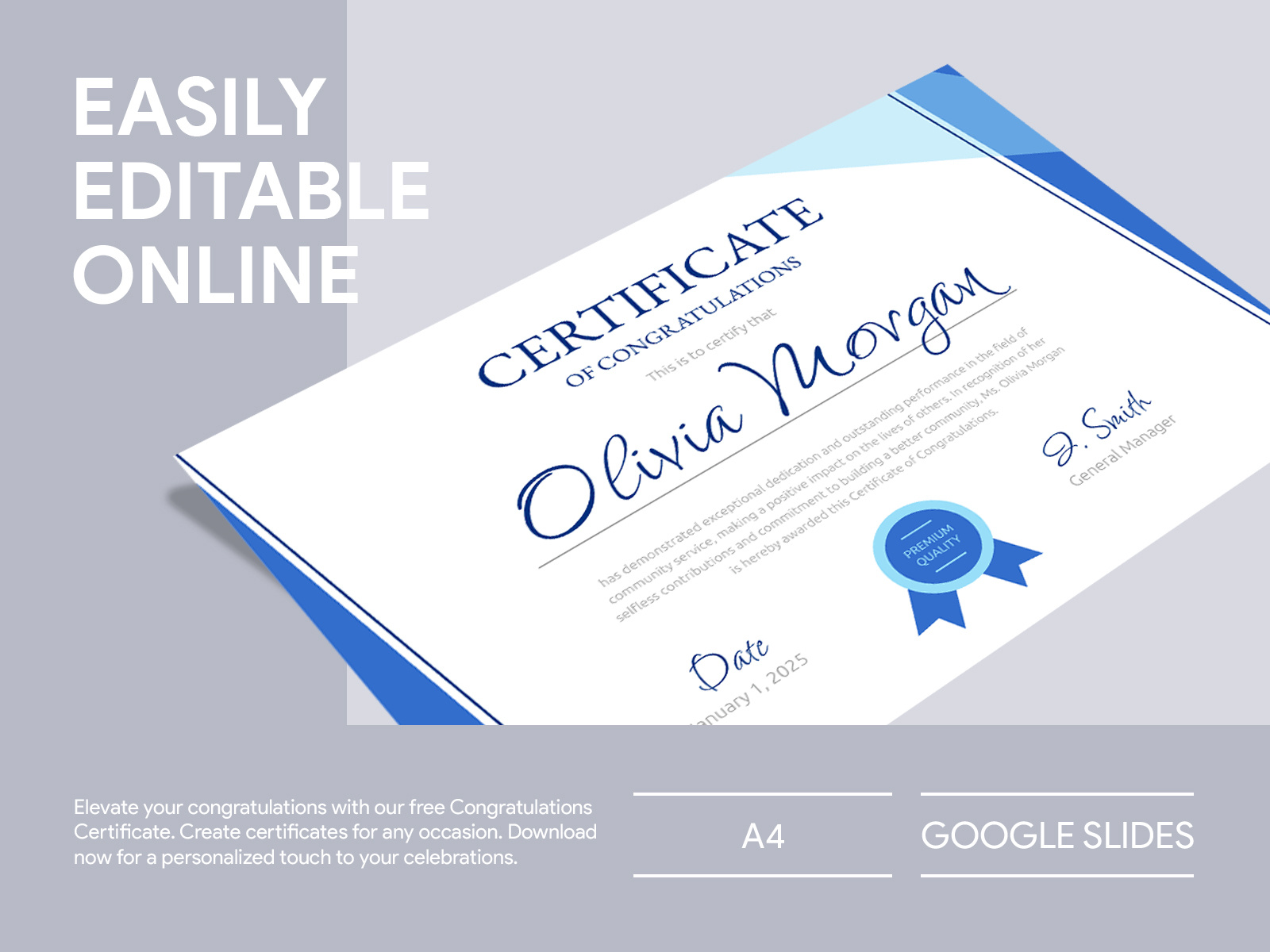
Choosing a Google Docs template for your Certificate of Achievement has several advantages. First, Google Docs is user-friendly and accessible from anywhere with an internet connection. You can edit your document on a computer, tablet, or smartphone. Plus, it saves automatically, so you don’t have to worry about losing your hard work.
Another significant benefit is the collaborative features. If you’re working with a teacher, coach, or colleague, you can share the document easily for feedback or suggestions. It’s a perfect way to ensure everyone’s input is included.
How to Personalize Your Certificate
Personalization is key to making a certificate feel special. Here are steps to create a meaningful Certificate of Achievement using your free Google Docs template:
- Choose Your Template: Start by selecting a template that suits your occasion. You can find various designs that cater to academic achievements, sports awards, or even workplace recognition. Look for templates that offer appropriate spaces for names, dates, and descriptions of the achievement.
- Edit the Text: Once you have your template, personalize the text. Include the recipient’s name prominently, and adjust the wording to reflect the specific achievement. For example, “Best Team Player” for a sports certificate or “Outstanding Academic Achievement” for a school award.
- Add Design Elements: Consider adding decorative elements like borders, images, or icons that relate to the achievement. You can easily insert images from Google Drive or use Google’s built-in drawing tools to create custom graphics.
- Choose Fonts and Colors: Select fonts that are easy to read and convey the right tone. For formal achievements, serif fonts work well, while playful occasions might benefit from a fun, colorful font. Similarly, use colors that reflect the event or the recipient’s personality.
- Include Signatures: Adding signatures from relevant individuals can give the certificate an official touch. You can insert a digital signature or simply leave a space for a handwritten signature after printing.
Printing Your Certificate
After personalizing your Certificate of Achievement, it’s time to print it. Here are some tips to ensure it looks great:
- Paper Type: Use a heavier paper like cardstock for a more professional feel. Cardstock is generally more durable and gives a certificate a premium touch. If you want to laminate it later, cardstock works best.
- Size Matters: Most certificates are typically printed in size 8.5 x 11 inches (standard letter size). However, check your template for specific size recommendations.
- Printer Settings: If you’re printing at home, ensure your printer is set to the highest quality. Use the “best” or “photo” setting if available. Remember to check if your printer handles cardstock, as some home printers may struggle with thicker paper.
- Test Print: Always do a test print on regular paper before using your chosen cardstock. This way, you can spot any alignment issues or errors before the final print.
Presenting the Certificate
The presentation of the certificate can enhance its significance. Here are some creative ways to present your award:
- Frame It: Consider placing the certificate in a simple frame. This not only protects it but also makes it a lovely keepsake that can be displayed proudly.
- Ceremony Moment: If it’s for a school or sports event, consider creating a small award ceremony. Calling the recipient up in front of peers adds an element of recognition that they will cherish.
- Add a Gift: Pair the certificate with a small gift, like a medal or a gift card. This can make the achievement feel even more rewarding.
- Digital Version: If you’re sending the certificate electronically, save it as a PDF to preserve the formatting. This makes it easy to share via email or social media.
Things to Watch Out For
When crafting your Certificate of Achievement Free Google Docs Template, keep a few practical considerations in mind:
- Text Alignment: Ensure that all text is properly aligned and that there are no typos. A small error can detract from the overall appearance of the certificate.
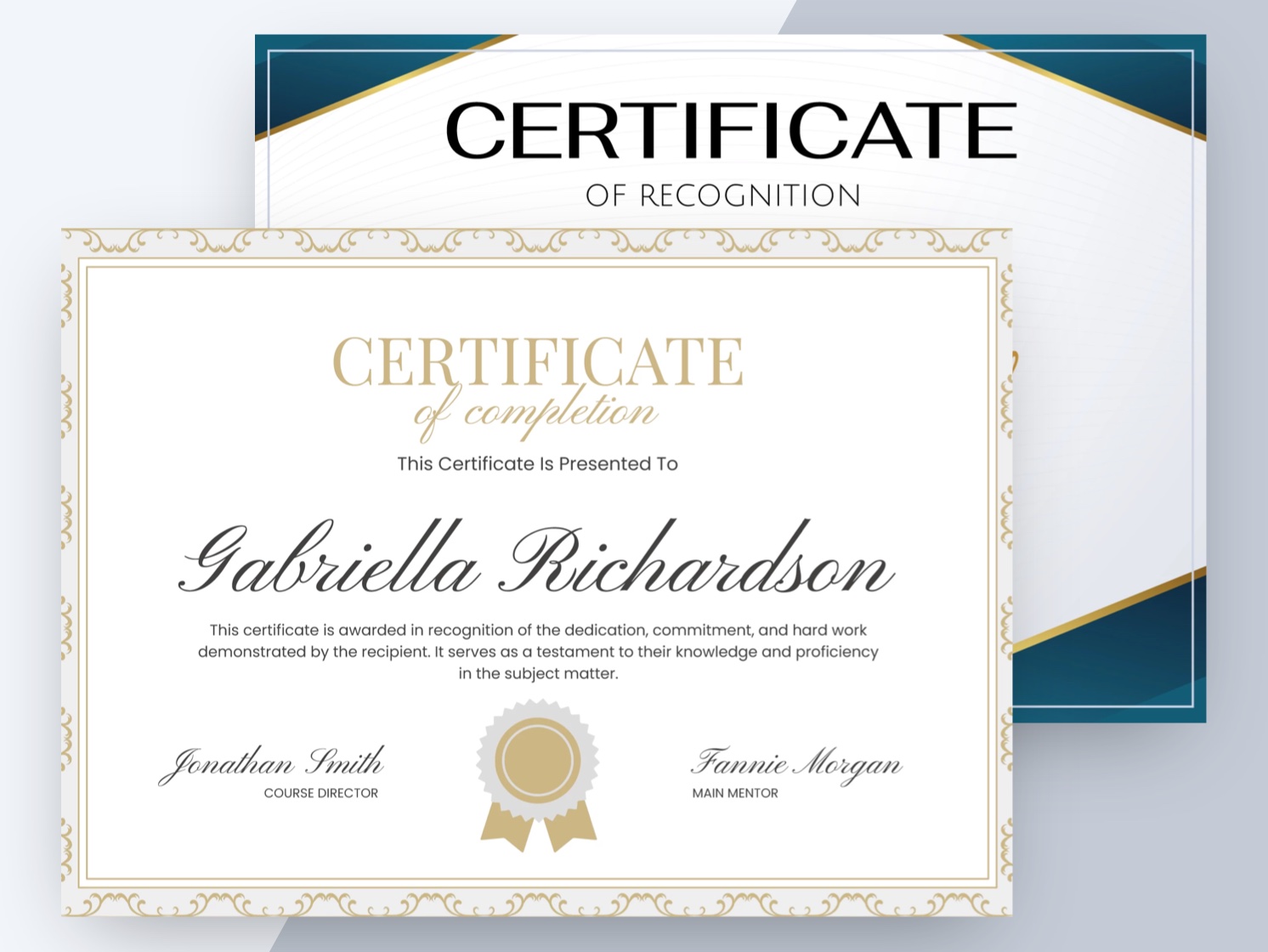
- Design Consistency: Stick to a consistent color scheme and font style throughout the certificate. Mixing too many styles can make it look cluttered.
- Proper File Management: Keep track of your template and any versions you create. It’s helpful to save a clean version for future use, especially if you plan to use it repeatedly.
Creating a Certificate of Achievement using a free Google Docs template is a fun and straightforward process. With some creativity and attention to detail, you can craft a memorable certificate that celebrates accomplishments in style. Just remember to personalize it, print it correctly, and present it in a way that highlights the achievement!
Certificate of Achievement Free Google Docs Template Gallery